
From Hard Drive To Smart TV A Simple Path For Your Home Videos
If you have years of family videos stuck on a hard drive and a Smart TV on the wall, you already have everything you need to create a private, at-home streaming experience. The key is choosing the easiest path from external storage to TV playback, especially if you are not technical and you want relatives to watch without frustration.
There are three main ways to get videos off a hard drive and onto a Smart TV. You can plug the drive directly into the TV, stream across your home network, or upload to a streaming platform designed for personal home videos such as Projector. Each option can work, but they are not equally simple, reliable, or family friendly.
Option 1: Plugging an External Hard Drive Directly Into Your Smart TV
The most obvious method is to connect your USB hard drive straight to the TV. Many Smart TVs have a USB port on the back or side. Once the drive is plugged in, the TV often detects it as a media source so you can browse folders and play files.
This approach can be useful for quick viewing, especially if you have only a few files and you are comfortable navigating folders with the TV remote. If your videos are already in a format the TV supports and the drive is formatted in a way the TV understands, you may be watching in minutes.
However, there are a few common friction points. Different TVs support different file types, so a video that plays on your computer might not play on your TV. Some TVs do not read large drives or certain drive formats. Browsing long lists of files with a remote can also be tiring, especially if your home movies are spread across many folders with unclear file names.
This method is usually best when you need a one-off solution, for example plugging in a USB stick to show a short clip. It is less ideal if you want an organized, long term way to enjoy a whole library of family memories.
Option 2: Streaming From a Hard Drive Over Your Home Network
The next level up is to keep your hard drive connected to a computer or home server, then stream those files to your Smart TV over your Wi-Fi network. Many TVs support media streaming standards such as DLNA, which allow compatible apps and devices on your network to share photos and videos.
In practice, this means you run media software on a computer that can see your external hard drive. The software organizes your videos and offers them to your TV as a media source. On the TV, you open the media sharing or network option, then browse and play the files.
Network streaming can be more flexible than a direct USB connection, because your computer can handle more file types and can be updated over time. It also keeps the drive and computer in a safe place, while your TV only handles playback.
At the same time, this setup works best if someone in the household is comfortable managing a media server. The hosting computer usually needs to be powered on whenever you want to watch. If your Wi-Fi is weak or your network is complicated, you may see buffering or connection errors. For many families, this feels more like an ongoing project than a simple solution.
Option 3: Turning Your Hard Drive Library Into a Private Streaming Service
If your goal is not just to get a single video on the screen but to transform a lifetime of memories into something that feels like a private Netflix for your family, a cloud-based personal media platform is often the best fit. This is where Projector comes in.
With Projector, you move your home videos and photo albums from that external hard drive into secure cloud storage that is designed specifically for personal memories. Once uploaded, you can stream them on Smart TVs through dedicated apps, share with family members, and avoid the usual format and connection issues.
The process looks like this. First, you connect your hard drive to your computer, then upload your selected videos and photos to your Projector account. Since it is cloud based, your library is backed up and available even if your original drive is lost or fails. Next, you install the Projector app on your Apple TV, Roku, or Google TV device that is connected to your television. Sign in, and your entire collection appears on the screen in an organized, visual interface.
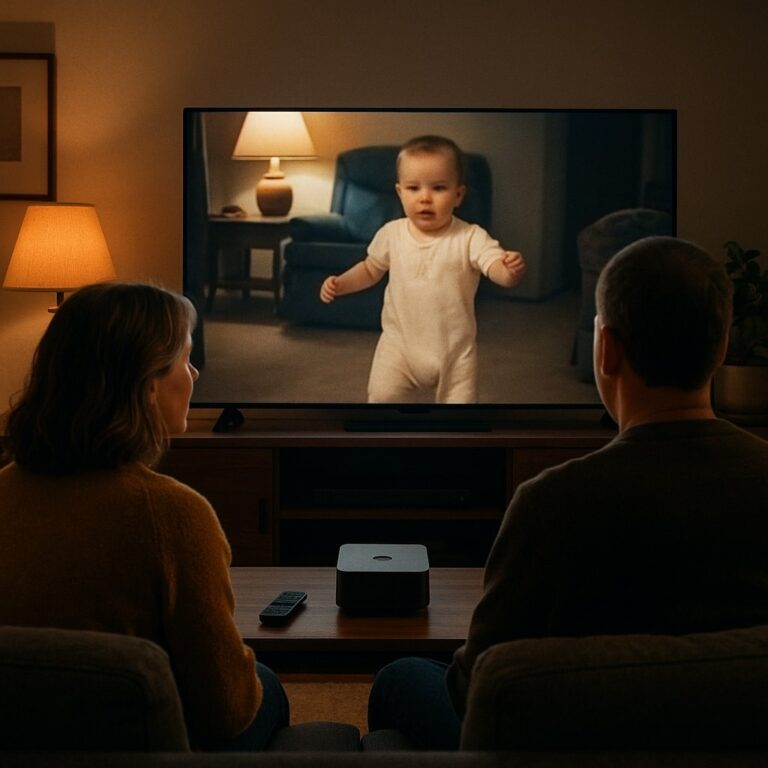
This changes the experience from “How do I get this hard drive to work with my TV?” to “Which memory do we want to watch tonight?” Instead of folders and filenames, you see thumbnails, albums, and dates. Relatives can sit down, pick a birthday, holiday, or vacation, then watch instantly, even if they are not comfortable with technology.
Why App-Based Streaming Is Often the Easiest Way
Beyond the setup itself, it helps to think about how you and your family will actually use your videos in daily life. Direct USB playback and home network streaming can work, but they tend to put the technical details front and center. You need to remember which cable goes where, which computer must stay on, and which menu on the TV has the right settings for video formats.
With an app like Projector on a Smart TV platform, those technical layers are largely hidden. The TV simply shows a familiar app icon alongside your other streaming services. Once opened, the interface is built from the ground up for personal videos and photo albums. Children can navigate to their own milestones, grandparents can revisit older footage without hunting through folders, and you as the organizer do not have to be present every time someone wants to watch.
Cloud-based storage is also more flexible than a single hard drive. You can digitize old tapes or DVDs over time and keep adding them to the same library, instead of filling multiple drives scattered around the house. Unlimited video storage means you do not have to constantly decide what to delete. Everything that matters can stay available on your TV, phone, or tablet.
Supported Devices: Apple TV, Roku, and Google TV
One common concern when choosing how to stream home videos is device compatibility. Many households have more than one type of TV or streaming box, and extended family members may use different devices entirely. Relying on USB playback on the TV itself can be unpredictable, because every manufacturer has its own capabilities. Network streaming setups can behave differently on each brand of TV as well.
Projector solves this by supporting major TV platforms through dedicated apps. If your television has Apple TV, Roku, or Google TV connected, you can install Projector directly. The experience is consistent across devices, so you do not have to relearn menus or worry that one TV can play a memory that another cannot. If you share access with relatives, they simply install the app on their own compatible device and sign in to enjoy the same organized family library.
Making Home Videos Truly Family Friendly
When you think about the best way to get videos off a hard drive and onto a Smart TV, it helps to look beyond the first playback and consider how future friendly the solution is. A method that works once, but confuses grandparents or requires constant help, may not be the best fit for family memories you want people to revisit often.
Projector is designed for non-technical users as well as organizers. The heavy lifting happens during upload and organization, which you can do at your own pace. After that, day-to-day use on the TV is as simple as opening a streaming app and choosing what to watch. Family-friendly sharing means loved ones do not have to handle hard drives or navigate complex menus. They simply enjoy the moments you have preserved.
- If you want a quick, one-time way to play a few files, try plugging your hard drive or USB stick into the TV and using the built-in media browser.
- If you like tinkering with settings and already run a home server, network streaming from your hard drive to the TV can be powerful, although it needs more maintenance.
- If you want a lasting, simple and shareable way for your family to enjoy a whole library of memories on Smart TVs, consider uploading your videos to Projector and watching through its Apple TV, Roku, or Google TV apps.
Choosing the Right Path for Your Family Library
All three methods ultimately achieve the same thing. They move your videos from a hard drive to your Smart TV screen. The difference is how much effort it takes to keep everything working, how easy it is for non-technical family members, and how well the solution handles growth as you add more memories.
For many families, the best long term experience comes from turning a static hard drive into a living, cloud-based library with Projector. You keep your memories safe in one place, access them on modern Smart TV platforms, and give everyone in the family a simple, streaming-style way to revisit the moments that matter most.