
The Complete Guide to Watching Home Movies on TV
Somewhere in your home there is a box. Maybe it holds VHS tapes labeled in your mom’s handwriting. Maybe it holds DVDs from a digitization service you paid for years ago. Or maybe the “box” is a cloud drive with 40,000 files and a folder called “iPhone Backup.”
Either way, the story is the same. Your family memories are technically saved, but nobody is watching them.
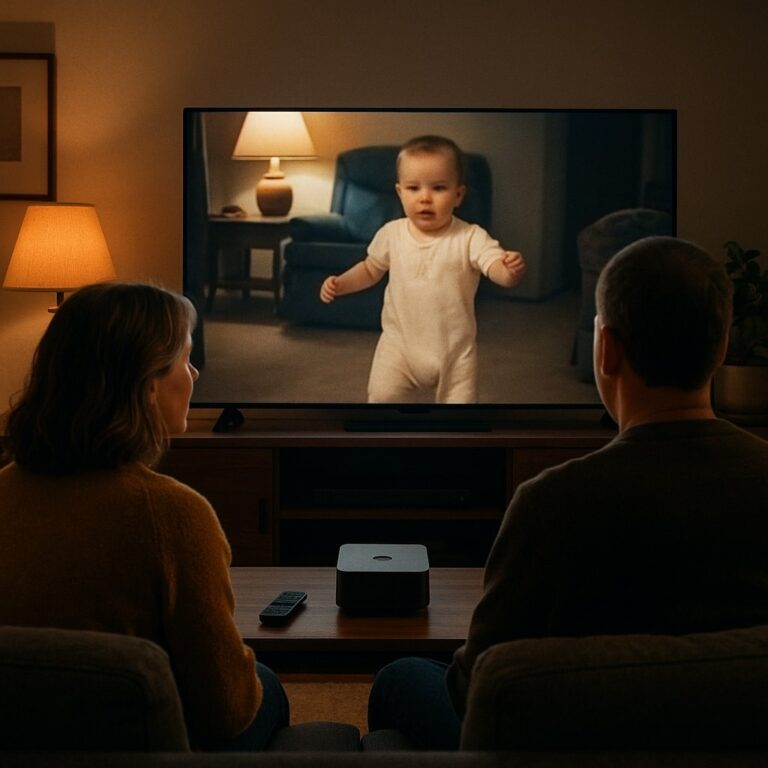
This guide fixes that. We will walk through every practical way to start watching digitized home movies on the biggest screen in your house, what each option really feels like to use, and how to set things up so your parents, grandparents, and relatives can press play without calling you for help.
Why Watching Home Movies on TV Is Harder Than It Should Be
Digitizing is only half the job. Most families finish VHS digitization, get a link or a hard drive back, and then stall. The files sit on a laptop. Someone tries to cast a clip to the TV at Thanksgiving, it buffers, the audio drifts, and everyone goes back to their phones.
The problem is not the footage. The problem is that home movie playback was never designed around the living room. Phones are built for scrolling. Cloud drives are built for storage. Neither is built for a family sitting on a couch together.
The good news is that modern TV viewing has caught up. Smart TVs, streaming sticks, and dedicated apps make it possible to watch family videos the same way you watch a favorite show. You just need to pick the right path.
Step 1: Get Your Footage Digitized
If your memories still live on tape or film, start here. You have two main options.
Use a digitization service
Companies like Legacybox, iMemories, and ScanCafe will take your VHS tapes, camcorder cassettes, film reels, and photos, convert them, and send back digital files. This is the right choice for most families because:
- It handles many formats (VHS, VHS-C, Hi8, MiniDV, 8mm and Super 8 film) without you buying equipment
- Old tapes are fragile, and professionals know how to handle them
- You get back files in standard formats that work on modern devices
When you order, ask for files in MP4 format. It is the most widely compatible format for TV viewing and streaming. Ask for a digital download or a USB drive, not just DVDs. DVDs are a playback dead end in most modern homes.
Do it yourself
If you are handy and have a working VCR, you can digitize at home with a USB video capture device. It takes time (tapes play in real time, so a two-hour tape takes two hours), but it gives you full control. Save everything as MP4, name files with the date and event (for example, “1994-12-25 Christmas at Grandmas.mp4”), and back them up in at least two places.
Already have old DVDs from a service?
Many families digitized a decade ago and got DVDs back. You can rip those DVDs into MP4 files with free tools, or ask the original service whether they still offer digital downloads of your order.
Step 2: Gather and Organize Everything in One Place
Before you worry about the TV, collect your media. Most families have memories spread across:
- Digitized tapes on a hard drive or USB stick
- Phone videos in iCloud, Google Photos, or Amazon Photos
- Clips shared in family group texts and social media
- Old camcorder SD cards sitting in a drawer
Pick one home for everything. Then sort it in a way a non-technical relative would understand. The simplest structure is by year and event, then by people. “1998 – Logan’s First Birthday” is easier to browse than “MOV_0042.”
This step is where most people give up, because organizing thousands of files by hand is tedious. Keep that in mind when you compare the options below. Some do the organizing for you and some leave it entirely on your plate.
Step 3: Choose How You Will Watch on TV
There is no single right answer for every family. Here are the real options, from simplest to most polished, with honest pros and cons.
Option A: Plug a USB drive into the TV
Most smart TVs have a USB port and a built-in media player.
Pros: Free, no internet needed, works offline. Cons: TV media players are clunky, support for some file formats is spotty, and there is no way to browse by person or event. It also only works on one TV at a time, so sharing with relatives means mailing drives around.
Best for: A one-time viewing at your own house.
Option B: Connect a laptop with HDMI
Plug your laptop into the TV and play files directly.
Pros: Reliable playback, works with nearly any file. Cons: Someone has to sit next to the TV and drive. It is not something your parents will set up on their own.
Best for: Tech-comfortable households and quick screenings.
Option C: Cast or AirPlay from your phone
If your videos are in Google Photos, iCloud Photos, or another app, you can often cast them to a Chromecast, Google TV, or Apple TV.
Pros: Fast, uses tools you already have. Cons: Your phone becomes the remote, playback can stutter on busy home Wi-Fi, and scrolling through thousands of phone videos on a TV is not a great experience. Photo apps treat video as an afterthought.
Best for: Showing a few recent clips.
Option D: Run a home media server
Tools like Plex or Jellyfin let you build your own streaming library from files on a computer or network drive.
Pros: Powerful, flexible, and it looks nice once set up. Cons: Real setup work. You need a computer or storage device running all the time, you manage remote access for relatives, and you are the family IT department forever.
Best for: Hobbyists who enjoy tinkering.
Option E: Use a dedicated family streaming app
This is the newest category, built specifically for watching digitized home movies on TV. Projector is one example. You upload or sync your media once, the app organizes it by people, places, and events, and your family watches it on a TV app that looks and works like the streaming services you already use.
Pros: Built for the living room, works across major smart TV platforms (Google TV, Roku, Apple TV, Amazon Fire TV, Samsung, and LG), handles organization for you, and makes sharing with relatives simple. Cons: It is a paid subscription, and you still need your footage digitized first.
Best for: Families who want the experience to feel like movie night and want relatives in other homes to watch too.
Quick comparison
| Option | Setup effort | Parent-friendly | Share with other homes | Organizes for you |
|---|---|---|---|---|
| USB drive in TV | Low | Medium | No | No |
| Laptop + HDMI | Low | Low | No | No |
| Cast / AirPlay | Low | Low | Limited | Partial |
| Home media server | High | Medium | Yes, with setup | Partial |
| Family streaming app | Low | High | Yes | Yes |
Step 4: Build a Parent-Friendly Media Setup
If one of your goals is getting Mom and Dad (or Grandma and Grandpa) watching, design the setup around them, not around you. A parent-friendly media setup follows a few rules.
One remote, one button. If watching family videos requires switching inputs, finding a second remote, or opening a phone app, it will not happen. The best setup is an app on the TV home screen they already use.
Big, clear labels. Titles like “Summer 1987 – Lake Tahoe” beat file names. Thumbnails of faces beat folder icons.
No passwords at the TV. Sign them in once during a visit. Most TV apps can stay signed in indefinitely.
Put it on the home screen. Move the app to the first row of their TV home screen. On Roku, Google TV, Fire TV, and Apple TV, you can rearrange apps so the family app sits next to the ones they already open every day.
Do a practice run. Before you leave, have them open it and play something while you watch. Write a three-line sticky note if needed: “Press Home. Choose Projector. Pick a video.”
This is where the choice in Step 3 matters most. A home media server or a casting setup can work for you, but it usually breaks down for a 75-year-old who just wants to see their grandkids’ first steps again.
Step 5: Share With Parents and Relatives
Easy sharing is what turns an archive into something your whole family actually enjoys. The goal is for a cousin across the country and grandparents across town to see the same library without anyone emailing files.
Here is how sharing typically works with each approach:
- USB drives and DVDs: Make copies and mail them. Works, but updates mean mailing new drives.
- Cloud links (Google Drive, Dropbox): Easy to send, but relatives end up watching on phones, and big video files are slow to open.
- Shared photo albums: Good for recent phone clips, awkward for hours of digitized tape.
- Family streaming app: Invite relatives as guests. They install the app on their own TV and see the shared library. Projector, for example, includes unlimited guest access, so every branch of the family can watch without paying separately.
A few tips for sharing well:
- Start with a highlight reel. Nobody wants to begin with six hours of raw footage. Pick 10 to 15 favorite moments and feature them first.
- Tag people. When relatives can tap their own name or a grandparent’s face and see every clip they appear in, engagement goes way up.
- Keep adding. Upload new clips after holidays and birthdays so the library feels alive, not archived.
Family Video Gifts That People Actually Watch
Digitized memories make some of the most meaningful gifts you can give, especially for milestone birthdays, anniversaries, Mother’s Day, Father’s Day, and the holidays. The catch is that a gift has to be easy to open.
Ideas that work:
- The “movie night” gift: Digitize a parent’s old tapes, set up a family streaming app on their TV, and host the first screening with the whole family in the room.
- The anniversary collection: Gather wedding footage, early family trips, and recent clips into one collection for a couple’s anniversary.
- The grandparent library: Collect every video featuring the grandkids and give grandparents a library they can open any time on their own TV.
- The legacy project: Record short interviews with older relatives about their childhoods and add them next to the old footage. Future generations will treasure these.
Family video gifts land best when the recipient does not need to do anything technical. A drive in a gift box often goes unopened. A library that is already on the TV, ready to play, gets watched that night.
Tips for a Great Home Movie Night
Once everything is set up, make it an event.
- Pick a theme. “Christmases of the 90s” or “Everyone’s first day of school” gives the night a shape.
- Keep it short. 45 to 60 minutes of highlights beats three hours of everything.
- Invite the storytellers. The best part of watching home movies together is the commentary. Grandparents fill in the names and stories nobody else remembers.
- Record the reactions. Film the family watching. It becomes the next generation’s home movie.
- Include remote relatives. If relatives are in other cities, pick a time and have everyone watch the same collection on their own TV while on a video call.
Frequently Asked Questions
What is the best file format for watching digitized home movies on TV?
MP4 with H.264 video is the most widely compatible choice across smart TVs, streaming devices, and apps. If a digitization service offers several formats, choose MP4.
Can I watch digitized VHS tapes on a smart TV without a computer?
Yes. You can play MP4 files from a USB drive using the TV’s built-in media player, or upload them to a family streaming app and watch through the TV app with no computer involved.
How do I share home movies with my parents who are not tech-savvy?
Choose an option that lives on their TV home screen and requires no passwords or phone apps to use. Set it up for them in person, move the app to the first row, and do one practice run together.
Is it safe to store family videos in the cloud?
Reputable services use encryption and private sharing. Still, keep at least one extra copy of your original files on a local hard drive. For irreplaceable memories, two copies in two places is the minimum.
Will old home movies look bad on a big 4K TV?
VHS footage was recorded at low resolution, so it will look soft on a large screen. That is normal. Most modern TVs and streaming devices upscale video automatically, and the emotional impact of seeing your family at full size in the living room is worth far more than pixel count.
Bring Your Family Memories Back to the Living Room
Watching digitized home movies should not require a tech support call. Get your footage digitized, gather it in one place, and choose a TV setup that matches how your family actually lives. For a quick one-time screening, a USB drive or laptop works fine. For a library the whole family can enjoy across generations and across homes, a dedicated family streaming app is the easiest path.
Projector turns your home movies, old footage, and family videos into a private streaming service on your TV. It organizes your memories by people, places, and events, works on Google TV, Roku, Apple TV, Amazon Fire TV, Samsung, and LG, and includes unlimited guest access so parents and relatives can watch from their own couch.
Your memories are already saved. Now it is time to watch them.